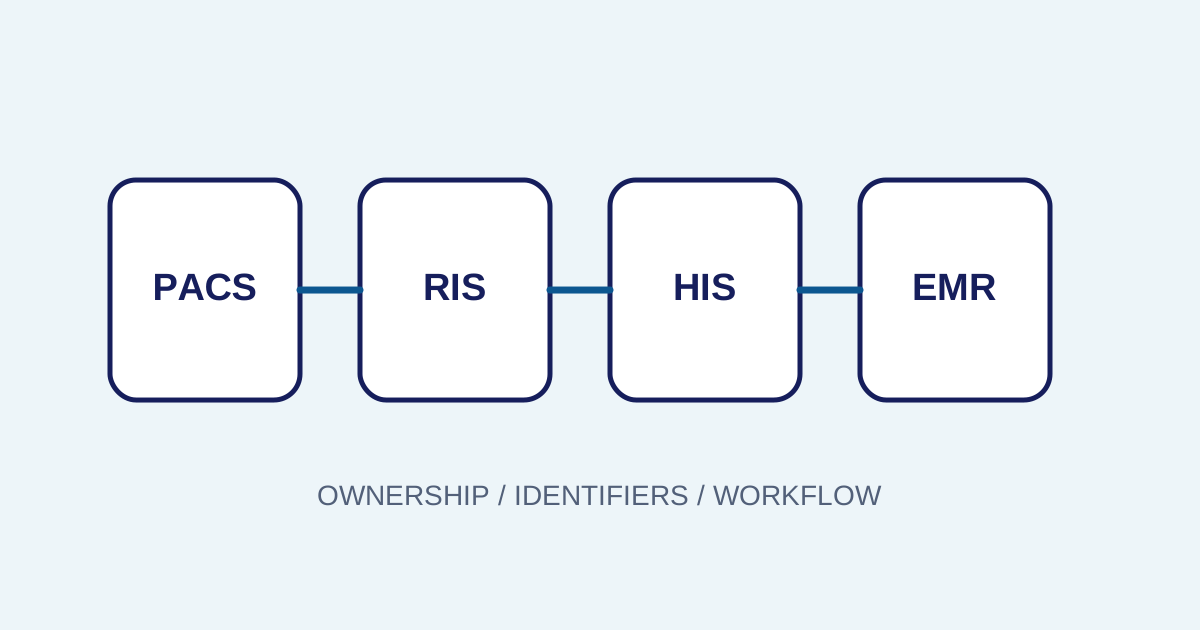
/ Healthcare technology
PACS Study Missing from Viewer? 5-Step Troubleshooting
A structured way to investigate a missing radiology study: from orders, worklists, and DICOM metadata through routing, storage, indexing, and user access. Includes a 5-step runbook.
Quick answer
What to know before reading further
- Do not assume the viewer is broken; check the order, worklist, acquisition, DICOM delivery, storage, indexing, and access in sequence.
- A stable identifier such as an accession number or Study Instance UID helps teams follow one study across stages.
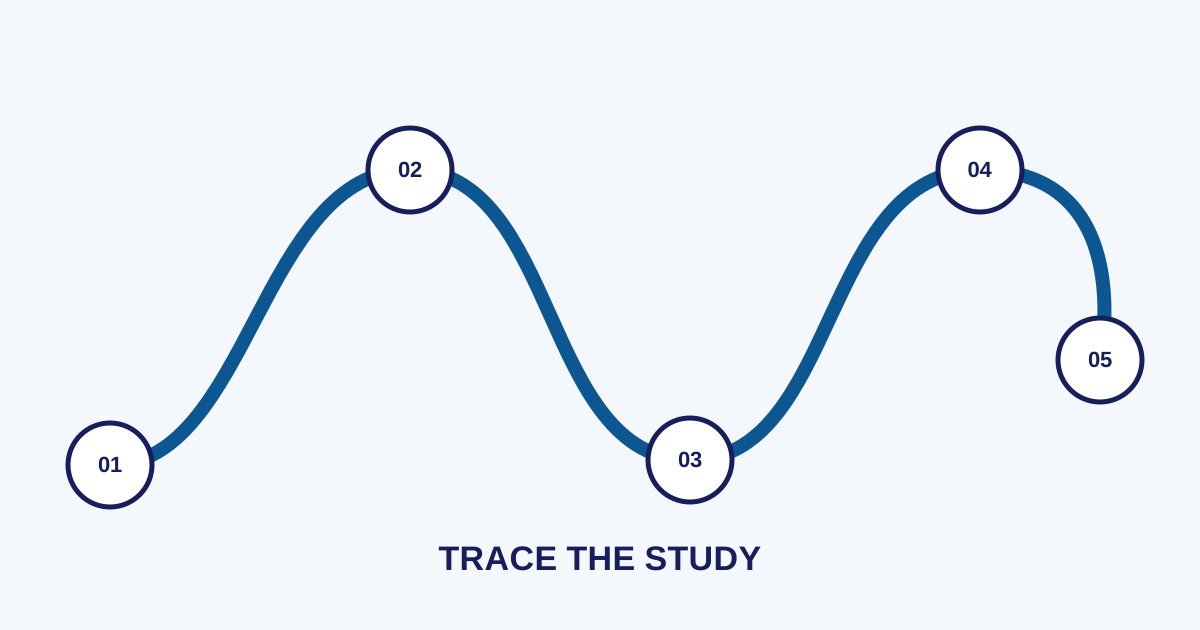
Process map
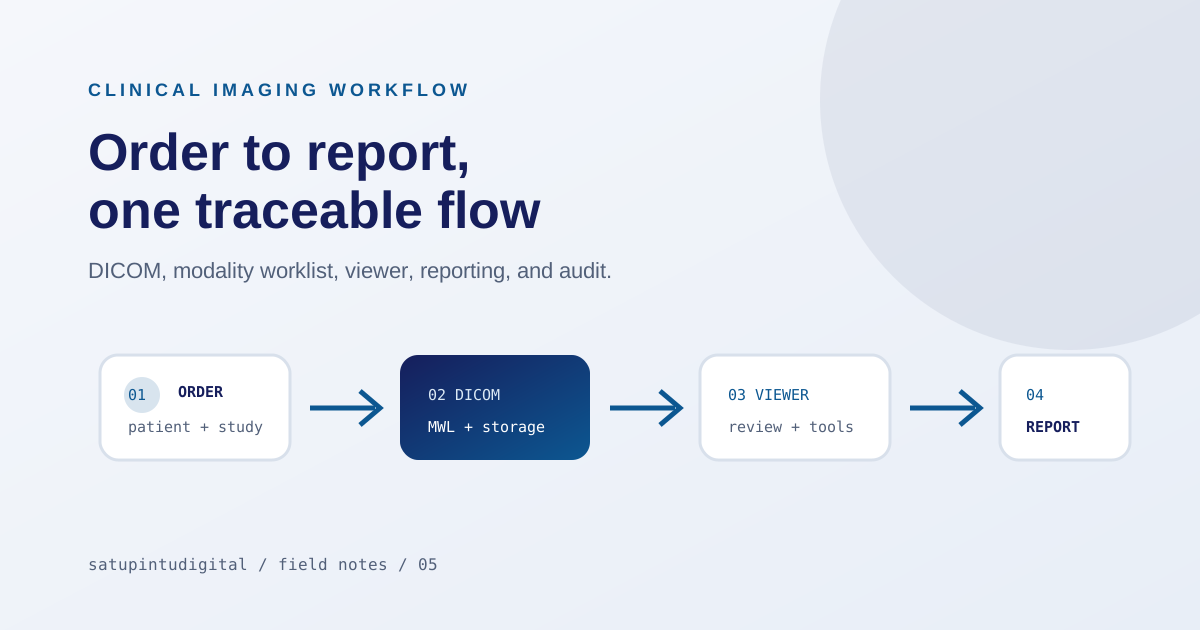
One examination, several checkpoints
- 01
Confirm the order
Find the patient, procedure, order status, and accession number in the facility's source system.
- 02
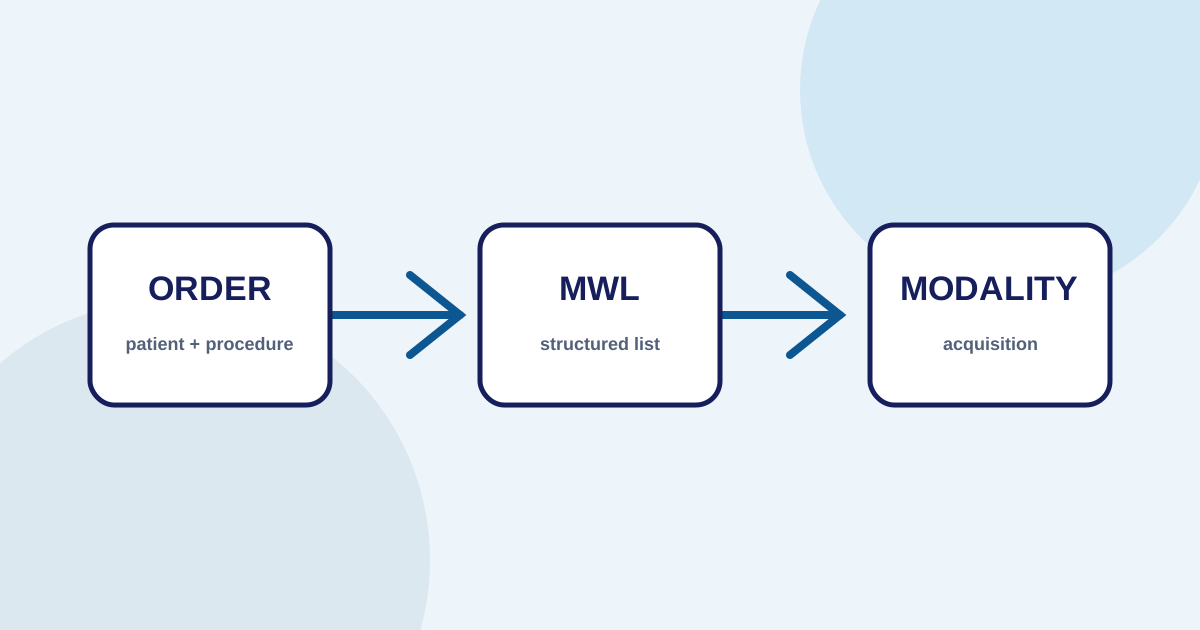
Check the worklist
Confirm the order reached the modality and the technician selected the correct examination.
- 03
Check metadata
Compare Patient ID, accession number, modality, study UID, and examination time.
- 04
Check routing
Review delivery logs, destination nodes, retry status, and receiver rejection messages.
- 05
Check storage and access
Confirm that the study is stored, indexed, and visible to the correct user role.
A “missing image” is usually a workflow question
A closer look
When a study does not appear in a viewer, the first report is often “the image is missing”. That statement does not identify where the problem is. The study may lack a valid order, may not have been selected from the worklist, may not have been sent through DICOM, may have been rejected by storage, may not be indexed, or may be hidden by access rules.
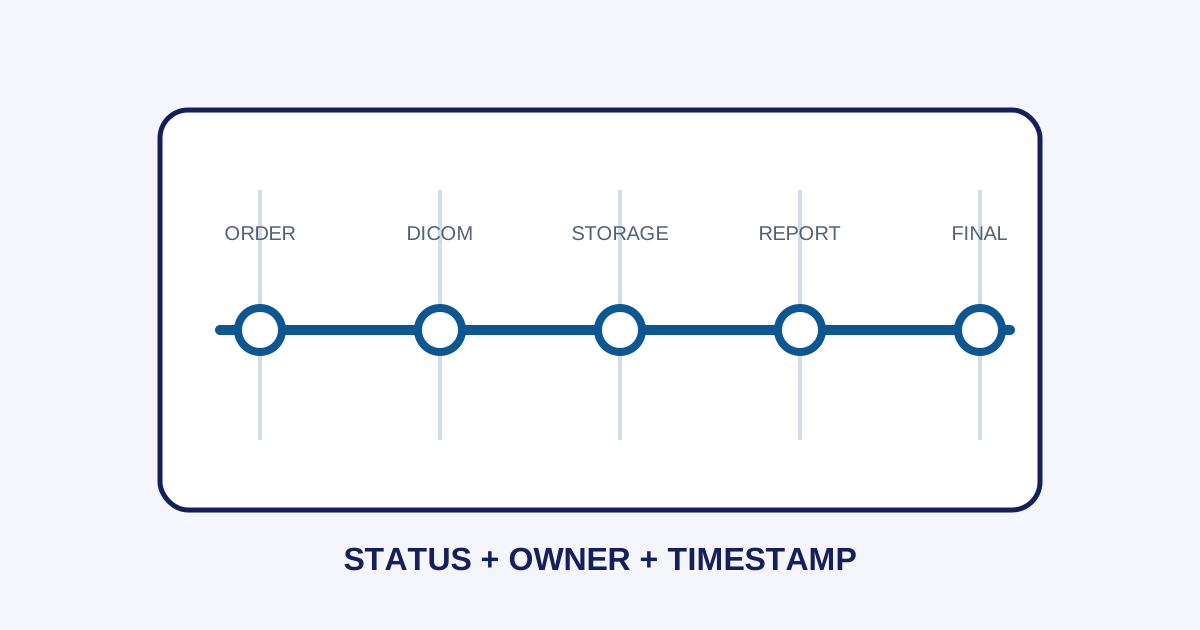
The safest approach is to trace one study from start to finish. The radiology PACS workflow article explains the full map; this article focuses on the investigation sequence.
Step 1: find the order and identifiers
Validate before the study begins
Start with the ordering system, not the viewer. Find the Patient ID, accession number, procedure, modality, examination time, and order status. Make sure the order was not cancelled, duplicated, or left waiting for validation.
Use a stable identifier when communicating across teams. Patient names can be duplicated or formatted differently, while accession numbers and Study Instance UIDs are more useful once a study exists.
Step 2: confirm the order was used at the modality
If an order exists but no study was created, check whether it appeared in the Modality Worklist and whether the technician selected the correct order. Common checks include:
- a date or modality filter that is too narrow;
- a failed query to the worklist server;
- a procedure without a mapping;
- an order assigned to another location or environment;
- manual entry that created different metadata.
Metadata differences at acquisition can make a study difficult to find even when its DICOM files were delivered successfully.
Step 3: check DICOM delivery
After acquisition, review the delivery status from the modality or router. Check the destination AE Title, network address, port, association status, and error message. Separate connection errors from data errors:
- Connection: unreachable node, closed port, timeout, or rejected association.
- Configuration: mismatched AE Title, service type, or routing destination.
- Data: missing required metadata, identity mismatch, or unsupported object.
- Operations: queued work, active retry, or full storage.
Do not repeatedly delete or resend without understanding the state. Repeated sending without idempotency and audit context can create duplicates and make tracing harder.
Step 4: check storage and indexing
If delivery looks successful, confirm that storage accepted the complete study. A study may contain several series; partial success is not the same as a complete examination.
Then check indexing. A viewer usually searches metadata through an index rather than scanning every file each time. If the data exists in storage but the index is stale, follow the approved reindex procedure and record its impact.
Step 5: check user access
A closer look
If an administrator can see a study but a radiologist or technician cannot, the problem may be a role, tenant, location, report state, or access rule. Use an appropriate test account without granting more access than necessary.
Do not solve access problems by making every user an administrator. Least privilege and auditability remain important for imaging data.
Build an actionable runbook
A troubleshooting runbook should include:
- symptom;
- stage to check;
- identifier to use;
- log or state to find;
- first action;
- owner;
- escalation criteria.
A good runbook helps a help desk isolate the first issue and provides better evidence when the case moves to an engineer or vendor.
For the underlying process, see the radiology PACS workflow.
See the DICOM Standard for the latest technical reference.
For the underlying process, see the radiology PACS workflow.
See the DICOM Standard for the latest technical reference.
Conclusion
A closer look
A missing PACS study should be investigated as a workflow problem rather than immediately blamed on the viewer. Trace the order, worklist, acquisition, metadata, routing, storage, indexing, and access using consistent identifiers.
Imagestro-PACS describes these stages as part of its order, DICOM, review, reporting, and integration workflow. Implementation must still follow the facility’s configuration and procedures.
Key terms
Quick glossary
- Study Instance UID
- A unique DICOM identifier that distinguishes one imaging study and supports tracing across systems.
- Routing
- The process of forwarding a DICOM study from a source modality or node to storage, a viewer, or another destination.
- Indexing
- The process that makes study metadata searchable and available to a viewer or worklist.
Read the sources
References and documentation
Frequently asked
Questions teams ask before implementation
- What should be checked first when a study is missing from the viewer?
- Start at the order source and identify the examination, then check the worklist, acquisition, DICOM delivery, storage, indexing, and user access in that order.
- Does restarting the viewer always fix a missing study?
- No. A restart might help a session or cache issue, but it will not fix an order, metadata, routing, storage, indexing, or access problem.
- How do you prevent a missing study from happening again?
- Turn each investigation into a runbook step: record the timeline, the failing stage, the identifier involved, and the corrective action. Recurring patterns such as repeated routing failures or metadata mismatches indicate configuration changes or monitoring that should be added before the next incident.
Transmit Radiology to SATUSEHAT Without the Setup Hassle
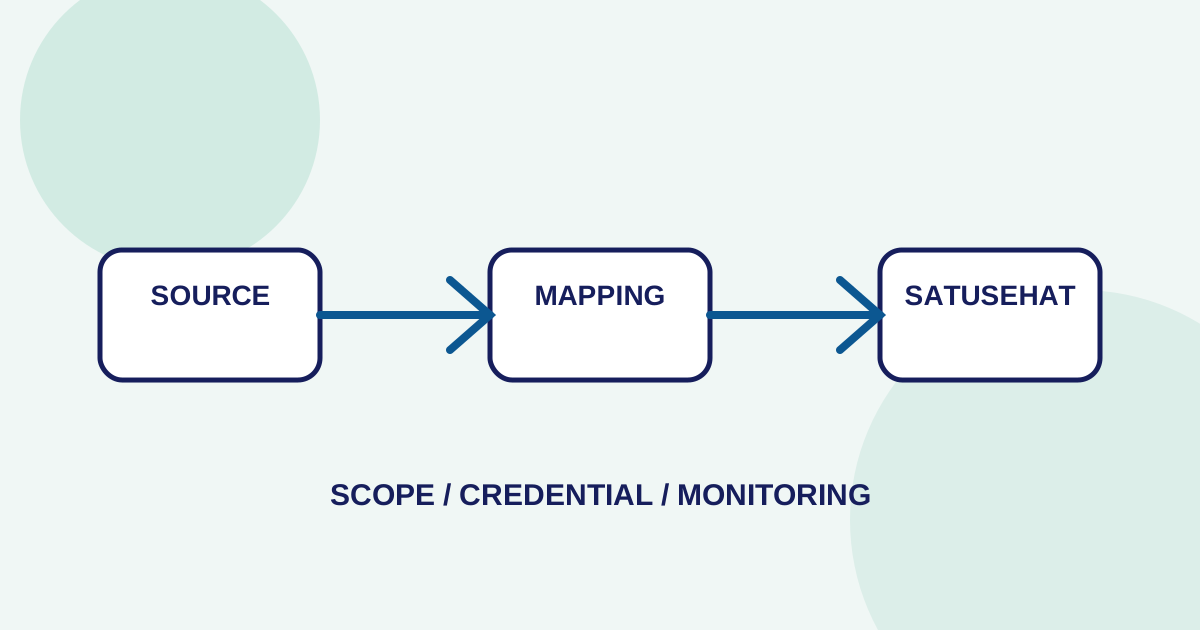
Connect your clinical imaging workflow—from modality worklists and automated accession numbers to web DICOM viewing and SATUSEHAT synchronization. Free Tier available for clinics and hospitals.
Content cluster