/ Healthcare Technology
Install DICOM Router in 5 Minutes — Here's How
5 minutes isn't a myth. But not with the approach you've been trying. Learn why manual DICOM Router setup can take days and what approach cuts all of that out.
Quick answer
What to know before reading further
- 5 minutes is achievable if SATUSEHAT routing is already built into the system you use — no installer, no separate configuration.
- Manual DICOM Router setup takes time not because the tool is poor, but because there are many undocumented configuration layers.
5 minutes. Not with the approach you’ve been trying.
5 minutes isn’t a made-up number. But to achieve it, one condition must be met: nothing needs to be installed separately.
If you’re reading this article because you’ve spent hours — or days — wrestling with DICOM Router setup and still haven’t managed to send a single DICOM file to SATUSEHAT, this article was written for you.
What actually takes the time?
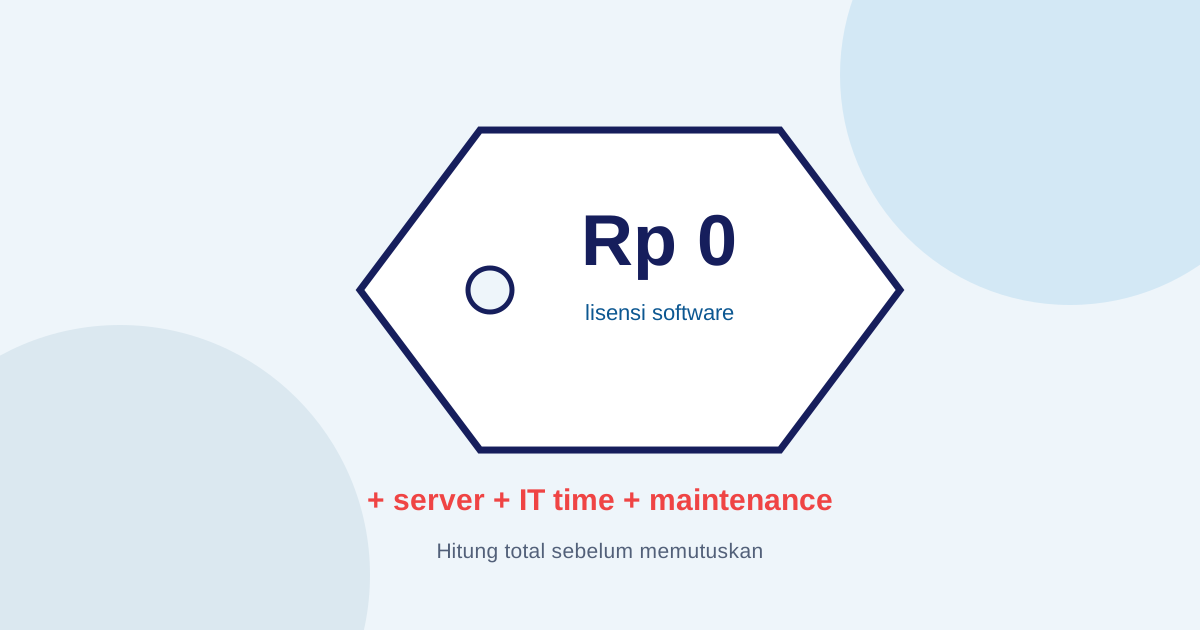
The DICOM Router from Indonesia’s Ministry of Health (Kemkes) is free and functional software. The problem isn’t with the software itself — the problem lies in everything that needs to be right before the software will run.
Here are the most common issues IT teams encounter in the field:
1. Windows LongPath Error
DICOM Router creates long file paths for temporary DICOM storage. Windows limits path length to 260 characters by default. Without enabling LongPath, errors appear that don’t clearly explain the cause. The fix exists — edit the registry, enable LongPathsEnabled, restart — but it’s not documented in the main setup guide.
2. Spaces in the Configuration File
The router.conf file is format-sensitive. ORG_ID=value is different from ORG_ID = value. A single accidental space causes SATUSEHAT authentication to fail without a clear error message.
3. AE Title Mismatch
AE Title is the name used by the PACS and DICOM Router to identify each other. If the PACS sends to DCMROUTER but the DICOM Router is configured with a different name — or there’s a hidden trailing space from the PACS software — the connection fails.
4. Port Already in Use
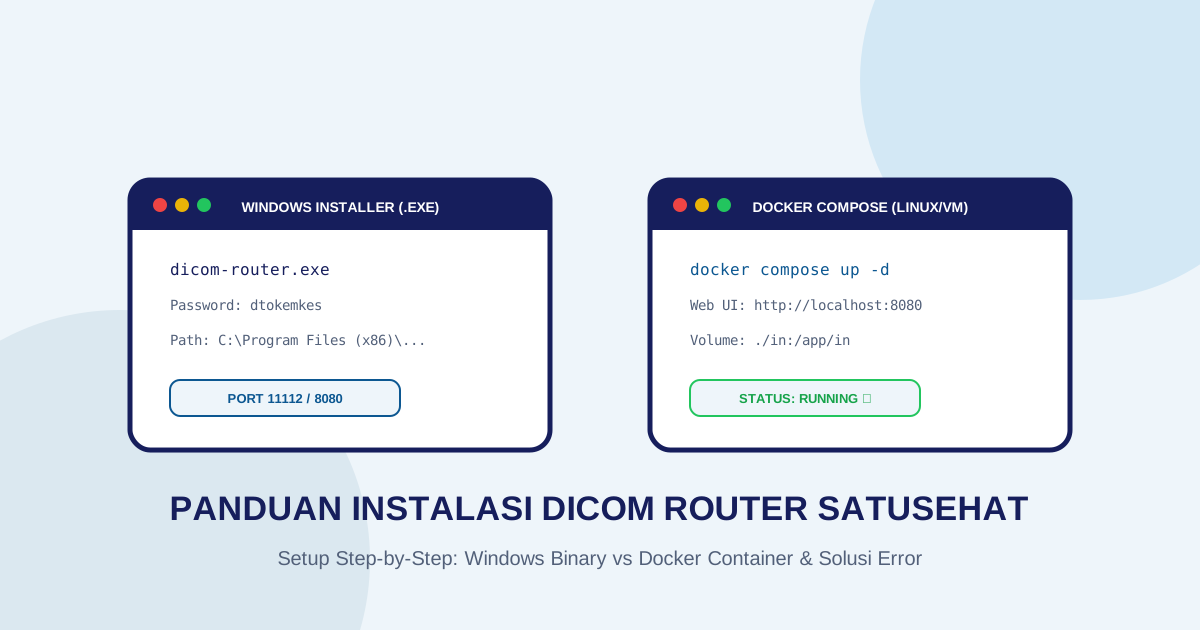
DICOM Router defaults to port 11112 (DICOM) and 8080 (HTTP). If either port is already used by another application on the same server, the router won’t start. You need to identify which process is using the port, then decide: change the router’s port, or move the other application.
5. Docker vs Installer
DICOM Router comes in two versions: a Windows installer and Docker. Both have different setup steps. Docker documentation is more complete, but not all IT teams are familiar with it. The Windows installer is more familiar, but more prone to path and permission issues.
6. ServiceRequest Must Be Sent First
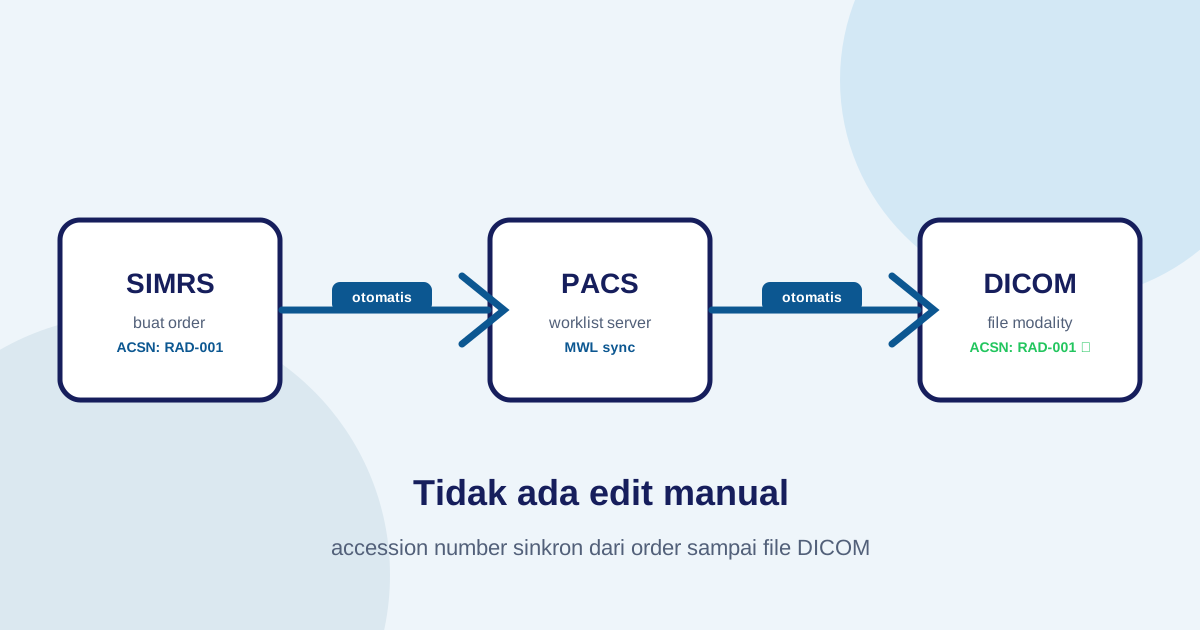
This is the most commonly overlooked step. DICOM files won’t be processed by the DICOM Router unless a ServiceRequest with the same accession number has already been sent to SATUSEHAT. This order cannot be reversed — and when reversed, the resulting error can be confusing because it doesn’t directly point to the cause.
Each of the issues above has a solution. But each solution takes time to find, test, and verify. That’s why “5 minutes” sounds like an unrealistic claim.
What’s a realistic timeframe for manual setup?
Based on field experience, IT teams setting up DICOM Router for the first time typically need:
- 1–2 hours if everything goes smoothly without any issues
- Half a day if there are 1–2 issues that need debugging
- Several days if there are compatibility issues with an existing PACS, network problems, or vendor coordination is needed
This doesn’t include long-term maintenance time: monitoring whether the router is still running, cleaning the /app/in folder that can fill up, or troubleshooting when a system update causes unexpected behavior.
Why do some teams finish faster?
There’s one variable that most determines how quickly this process goes: is SATUSEHAT routing already integrated in the system you’re using, or does it need to be configured as a separate component?
When routing is part of the PACS — not an add-on that needs to be installed, configured, and maintained separately — “5 minutes” stops being an unrealistic claim. In this context, what happens is:
- Create an account and register the healthcare facility
- Enter SATUSEHAT credentials (Organization ID, Client ID, Secret)
- Connect the modality or existing PACS to the system
No installer. No config file that can be accidentally formatted wrong. No port that needs to be freed. No docker-compose to write.
When does separate setup still make sense?
Setting up a separate DICOM Router still makes sense if:
- The facility already has an existing PACS with significant investment and doesn’t want to switch infrastructure
- The IT team has the capacity and familiarity to manage additional infrastructure
- There’s a need for full control over routing configuration and data storage
- Examination volume is high enough that cloud platform costs exceed self-hosted server costs
Outside of these conditions — especially for type C/D hospitals or clinics with limited IT teams — separate setup often adds burden without proportional value.
Imagestro-PACS includes SATUSEHAT routing as part of the platform — no separate DICOM Router to install or manage. If you’d like to see how this approach works in the context of Indonesian healthcare facilities, open Imagestro-PACS and start with the free tier.
Key terms
Quick glossary
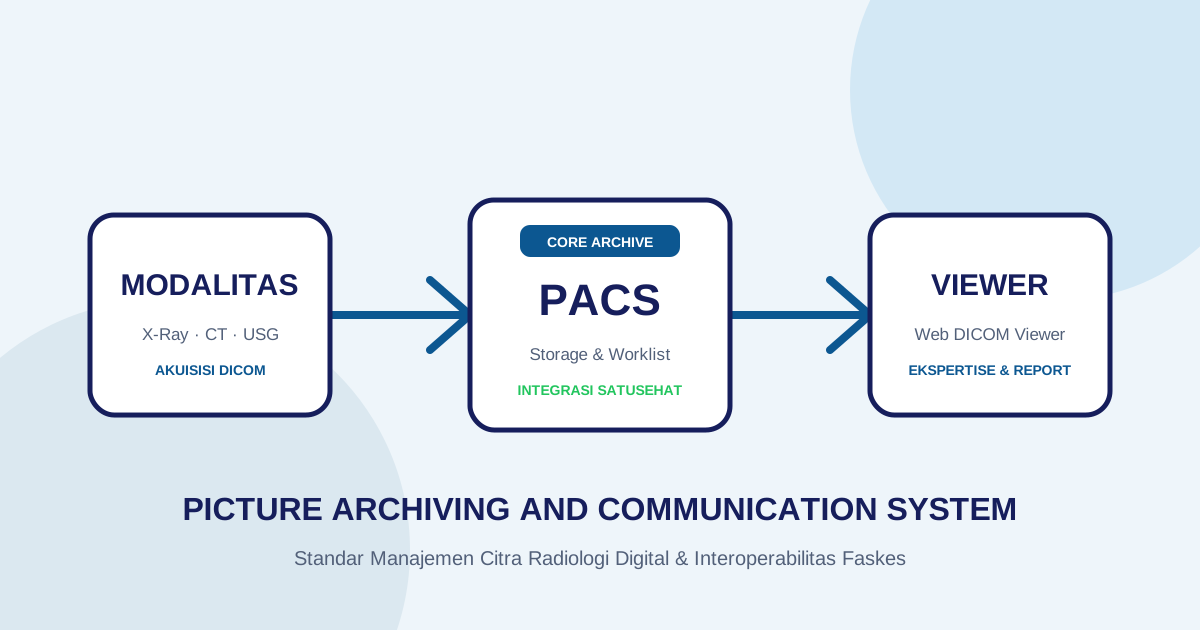
- DICOM Router
- Software that receives DICOM files from a PACS or modality and forwards them to a destination server such as SATUSEHAT NIDR.
- AE Title
- Application Entity Title — a unique name used to identify a device or software in DICOM communication.
- LongPath
- A Windows setting that allows file paths longer than 260 characters — a common source of errors when running DICOM Router on Windows.
- router.conf
- The main DICOM Router configuration file that stores credentials, SATUSEHAT URL, AE Title, and port settings.
Frequently asked
Questions teams ask before implementation
- Why does the DICOM Router from Kemkes often error on first launch?
- Most errors during initial setup are caused by incorrect configuration — spaces in the config file, Windows LongPath not enabled, port conflicts with other applications, or AE Title mismatch between the PACS and router. Each of these issues requires its own debugging steps.
- Does the DICOM Router need to be installed on the same server as the PACS?
- No. The DICOM Router can run on a separate server as long as the network between the PACS and router server is properly connected. What matters is that the IP, port, and AE Title are configured correctly.
- Are there alternatives to the Kemkes DICOM Router?
- Yes. Some PACS systems include SATUSEHAT routing as a built-in feature, eliminating the need to set up a separate DICOM Router. This approach reduces the number of components that need to be configured and maintained.
Transmit Radiology to SATUSEHAT Without the Setup Hassle
Connect your clinical imaging workflow—from modality worklists and automated accession numbers to web DICOM viewing and SATUSEHAT synchronization. Free Tier available for clinics and hospitals.
Content cluster